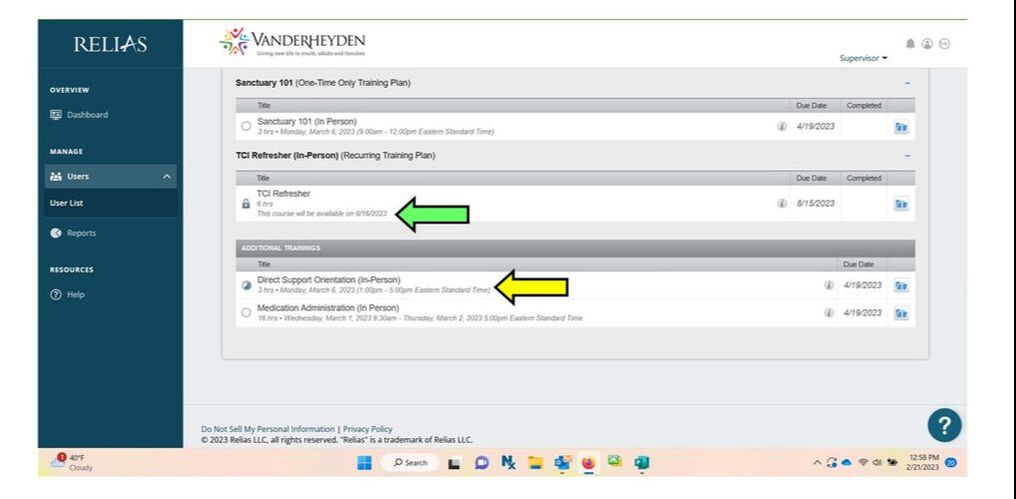
logging in
All employees will have a User Name that is the same as their Vanderheyden email. There are two ways to log in.
1) Employees can access the single sign-on option. This permits a user to use one set of login credentials to access multiple applications. In this case, it is the same username and password as your email, computer login, etc.
1) Employees can access the single sign-on option. This permits a user to use one set of login credentials to access multiple applications. In this case, it is the same username and password as your email, computer login, etc.
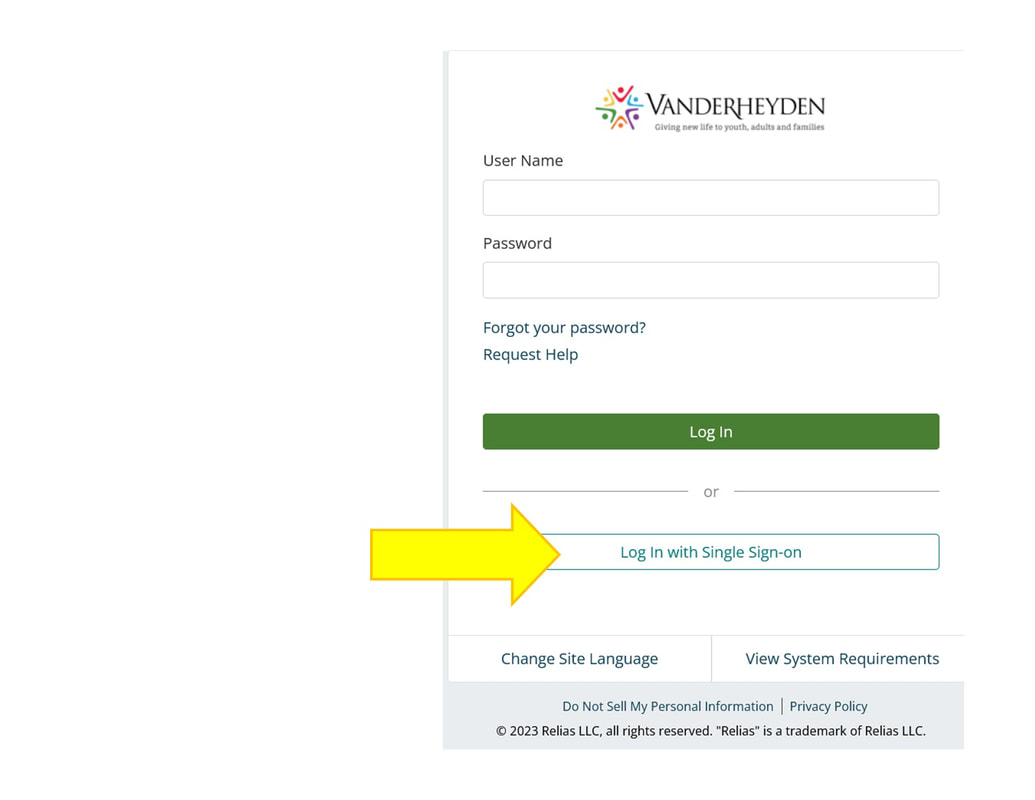
2) You may login using your User Name (which is the same as your full Vanderheyden email) and the password for your first time logging in is: Vanderheyden. Once you log in this way, you'll be prompted to change your password.
**For any assistance with Single Sign On - please reach out to the Vanderheyden IT department through their email helpdesk system.
**For any assistance with Relias User Name or Password - please reach out to the Vanderheyden Training department.
**For any assistance with Single Sign On - please reach out to the Vanderheyden IT department through their email helpdesk system.
**For any assistance with Relias User Name or Password - please reach out to the Vanderheyden Training department.
Accessing assigned training
When you first log in, most users will see their LEARNER page. If you are a Supervisor, Administrator, or Instructor, you will first see your SUPERVISOR page where you access employees reports, transcripts and more. To view your assigned trainings or access online trainings, you must select LEARNER at the upper right of your screen.
On your LEARNER page, you'll see 4 boxes. These boxes will indicate the number of trainings that you have been assigned that are:
On your LEARNER page, you'll see 4 boxes. These boxes will indicate the number of trainings that you have been assigned that are:
- Overdue
- Due within 7 days
- Due within 30 days
- Due within 90 days.
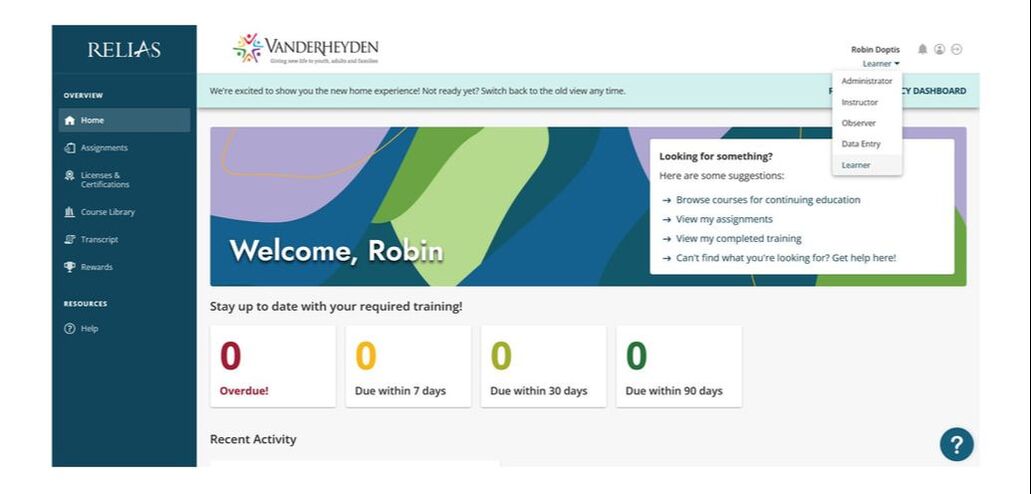
Simply click on the box and you will be taken to the list of assigned trainings. You may see 3 different types of trainings.
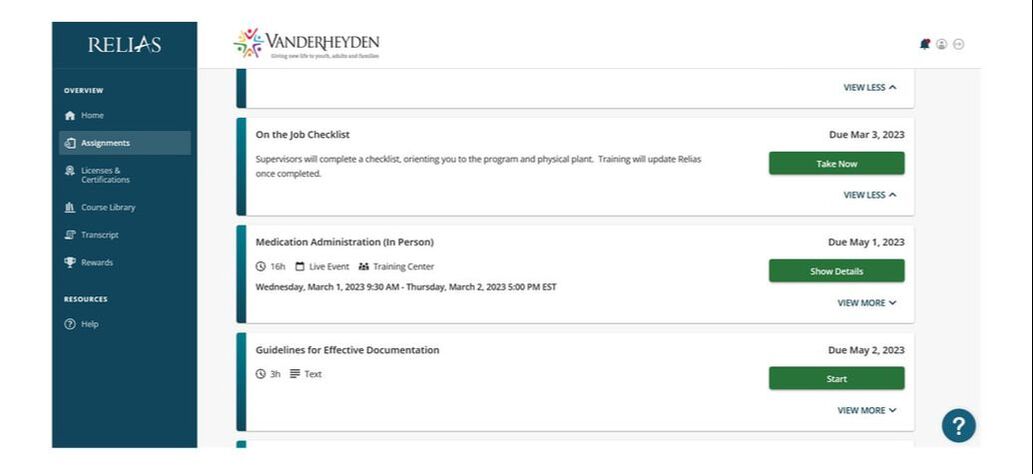
- If they are ONLINE trainings, you can launch and complete the trainings from there by clicking Start.
- If they are LIVE trainings, you will see the date and time you are registered for an in person training. (If you need to reschedule a registered training, reach out to the Training department.)
- If they are a REQUIREMENT TRACKER, such as a Fit for Duty, CPR Certificate, Med Pour or On the Job Checklist, the Training Department will mark complete once the requirement has been met.
Accessing specific training plans (Ex - Refresh fest)
Several trainings that have historically been in-person trainings are now available online. These are called Training Plans. Training Plans are made up of several individual topics and will not be considered complete until all topics are complete.
To access, log into Relias and click on either Assignments in the blue column on the left OR by clicking on one of the 4 boxes listing: Overdue; Due within 7 Days; Due within 30 Days; or Due within 90 Days (both will take you to the same screen).
Here, it will initially list all training topics you have been assigned. To view those in the specific Training Plan, click on Training Plans. Scroll down until you find the Training Plan you are looking for.
To access, log into Relias and click on either Assignments in the blue column on the left OR by clicking on one of the 4 boxes listing: Overdue; Due within 7 Days; Due within 30 Days; or Due within 90 Days (both will take you to the same screen).
Here, it will initially list all training topics you have been assigned. To view those in the specific Training Plan, click on Training Plans. Scroll down until you find the Training Plan you are looking for.
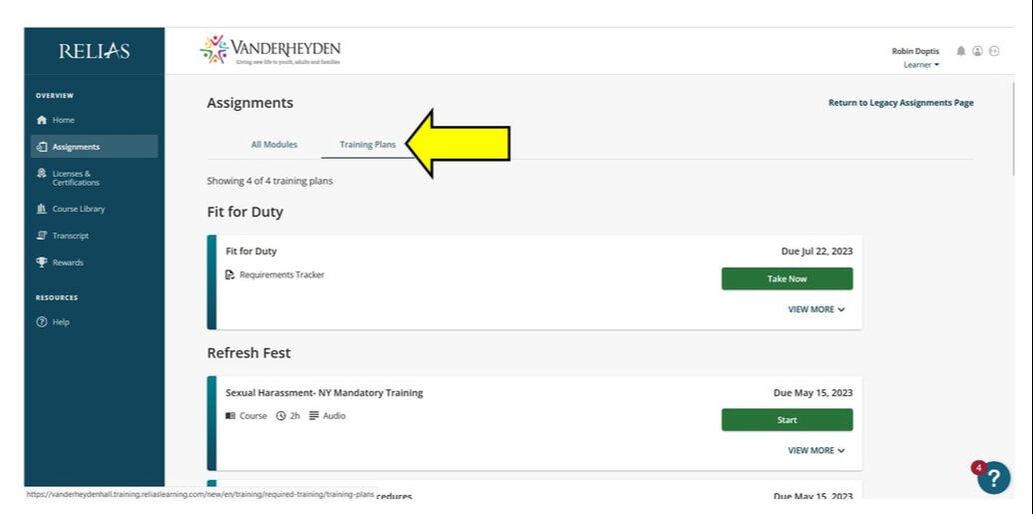
Refresh Fest will be listed as a Training Plan for all employees.
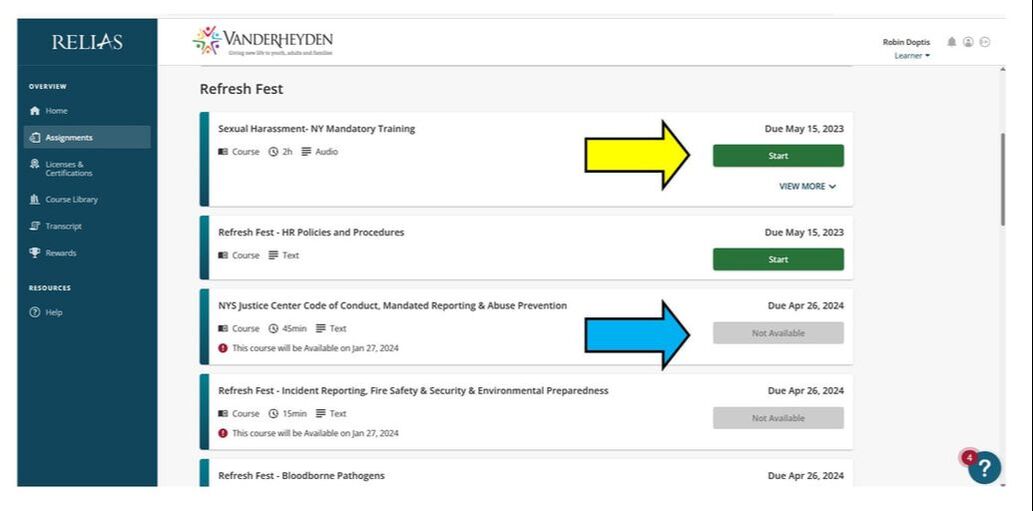
Yellow Arrow - The topics will be listed and can be completed by clicking "Start" and completing all requirements for each topic.
Blue Arrow - As you complete topics, they will show as "Not Available" (they will become available next year when it's time to renew!).
Keep going until all topics have been completed.
Yellow Arrow - The topics will be listed and can be completed by clicking "Start" and completing all requirements for each topic.
Blue Arrow - As you complete topics, they will show as "Not Available" (they will become available next year when it's time to renew!).
Keep going until all topics have been completed.
checking your training transcript
You can check and print your own training transcript at any time! Need your completed trainings for a promotional ladder? You can print! Unsure if HR received your Fit for Duty? You could check! Here's how:
Log into Relias.
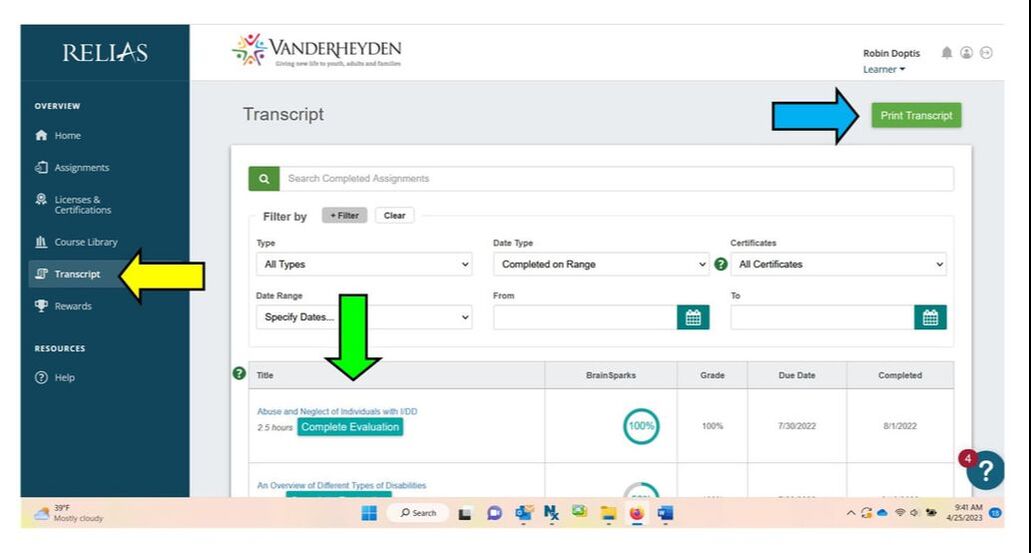
You should see a blue column on the left hand side of the screen. Click on Transcript (yellow arrow).
You will now see a list of completed topics (green arrow).
If you would like to print your Transcript, simply click Print Transcript (blue arrow).
Log into Relias.
You should see a blue column on the left hand side of the screen. Click on Transcript (yellow arrow).
You will now see a list of completed topics (green arrow).
If you would like to print your Transcript, simply click Print Transcript (blue arrow).
Supervisory reports
There are many different ways, as a Supervisor, to access information about an employee. Easy to read and access reports have been created for each Supervisor. To access these reports, log in to Relias and make sure you are on your SUPERVISOR page. (Remember, if you need to change pages, click on the arrow near your name on the upper right side of the screen.)
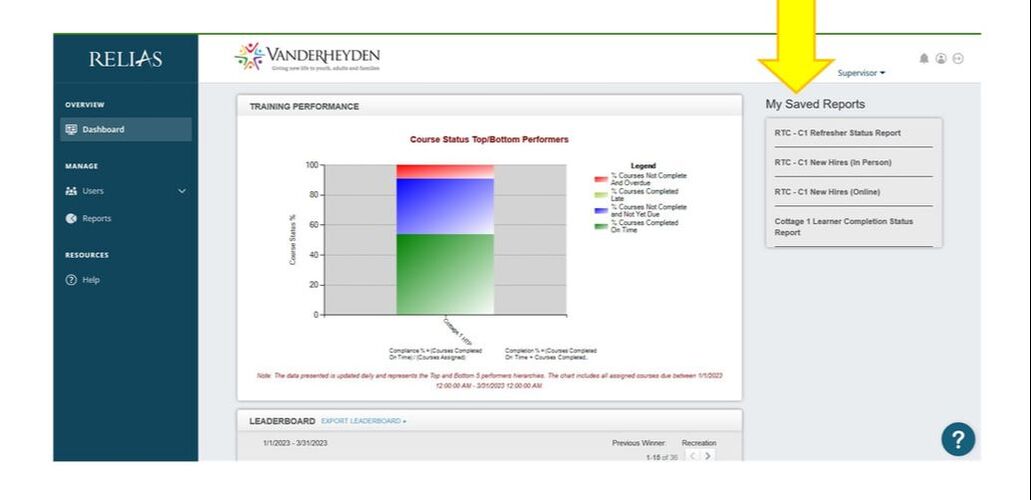
You'll see a list of Saved Reports on the right hand side of your screen.
You'll see a list of Saved Reports on the right hand side of your screen.
REFRESHER STATUS REPORT
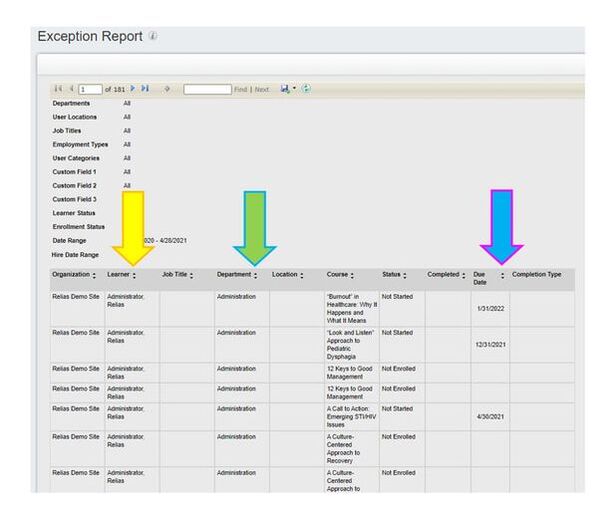
The Refresher Status Report will show you a report of Trainings that require refreshers (TCI Refresher, SCIP-R Refresher, etc.)
There are several ways to sort the report to make the information more useful. Simply click on the little arrows as shown below.
YELLOW ARROW: You can sort the report by Learner, so you can easily see all their upcoming refresher dates.
GREEN ARROW: You can sort by Department. If you are someone who has access to several programs, and you want to see how one specific program is doing, this will group the report by program.
BLUE ARROW: You can sort by Due Date. If you click once, if will sort the report by the farthest due date. Click it a second time, and it will sort the report by the closest due date - this is a quick and easy way to see if anyone is overdue on anything or which topics are coming due soonest.
The Refresher Status Report will show you a report of Trainings that require refreshers (TCI Refresher, SCIP-R Refresher, etc.)
There are several ways to sort the report to make the information more useful. Simply click on the little arrows as shown below.
YELLOW ARROW: You can sort the report by Learner, so you can easily see all their upcoming refresher dates.
GREEN ARROW: You can sort by Department. If you are someone who has access to several programs, and you want to see how one specific program is doing, this will group the report by program.
BLUE ARROW: You can sort by Due Date. If you click once, if will sort the report by the farthest due date. Click it a second time, and it will sort the report by the closest due date - this is a quick and easy way to see if anyone is overdue on anything or which topics are coming due soonest.
NEW HIRES (IN PERSON)
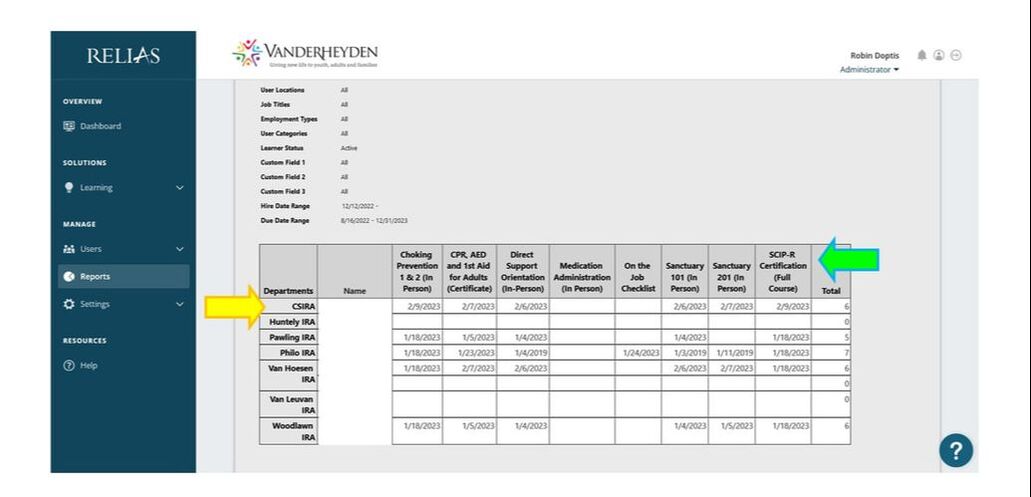
The New Hires (In Person) Report will show you the status of all required in person trainings for new hires since the launch of Relias in January 2023.
The Department will be listed on the left hand side. (If you are viewing a report of multiple programs, they will already be grouped.)
Training topics will be listed across the top.
Once completed, the date of completion will be listed. If it is blank, the person has not completed yet.
The New Hires (In Person) Report will show you the status of all required in person trainings for new hires since the launch of Relias in January 2023.
The Department will be listed on the left hand side. (If you are viewing a report of multiple programs, they will already be grouped.)
Training topics will be listed across the top.
Once completed, the date of completion will be listed. If it is blank, the person has not completed yet.
NEW HIRES (ONLINE)
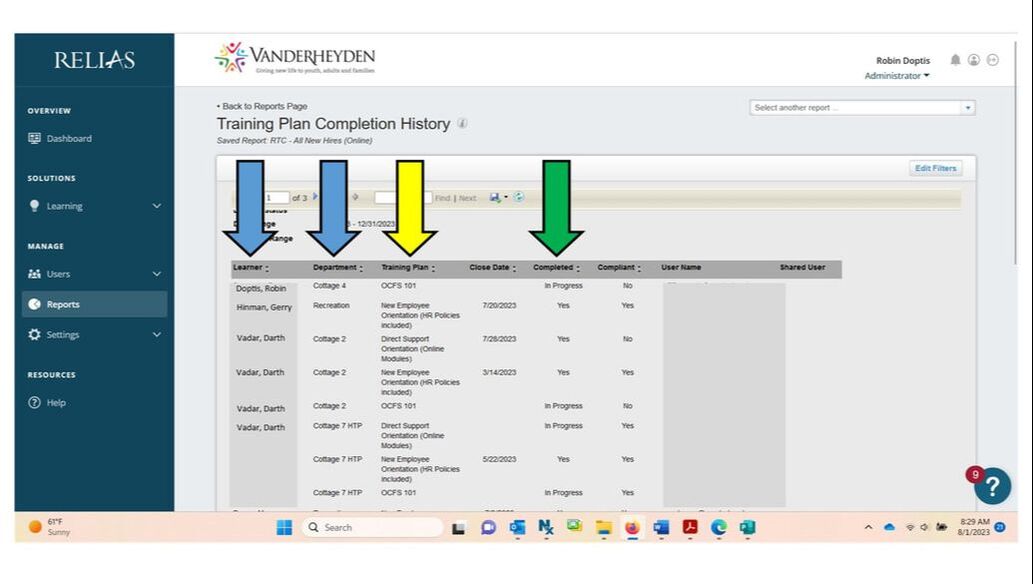
The New Hires (Online) Report will show you the status of all required online trainings for new hires since the launch of Relias in January 2023.
Several former in person trainings have been moved to an online format with groups of training topics called TRAINING PLANS. Former in person trainings such as New Employee Orientation, OPWDD 101, OCFS 101 and half of Direct Support Orientation now have their own Training Plan.
You can sort the report by Learner or by Department simply by clicking on Learner or Department (Blue Arrow)
The Name of the Training Plan will be listed (Yellow Arrow)
If the full Training Plan has been completed or is in progress will also be listed (Green Arrow)
Once fully completed, the date of completion will be listed under Close Date.
If it is not completed within the assigned timeframe, they will be marked No under Complaint.
The New Hires (Online) Report will show you the status of all required online trainings for new hires since the launch of Relias in January 2023.
Several former in person trainings have been moved to an online format with groups of training topics called TRAINING PLANS. Former in person trainings such as New Employee Orientation, OPWDD 101, OCFS 101 and half of Direct Support Orientation now have their own Training Plan.
You can sort the report by Learner or by Department simply by clicking on Learner or Department (Blue Arrow)
The Name of the Training Plan will be listed (Yellow Arrow)
If the full Training Plan has been completed or is in progress will also be listed (Green Arrow)
Once fully completed, the date of completion will be listed under Close Date.
If it is not completed within the assigned timeframe, they will be marked No under Complaint.
ADDITIONAL INFORMATION FOR INDIVIDUAL EMPLOYEES
If after accessing these reports, you want additional information about specific employees, such as when they are registered for in person trainings or when the assigned Training Plans are due, you can find this in their employee profile.
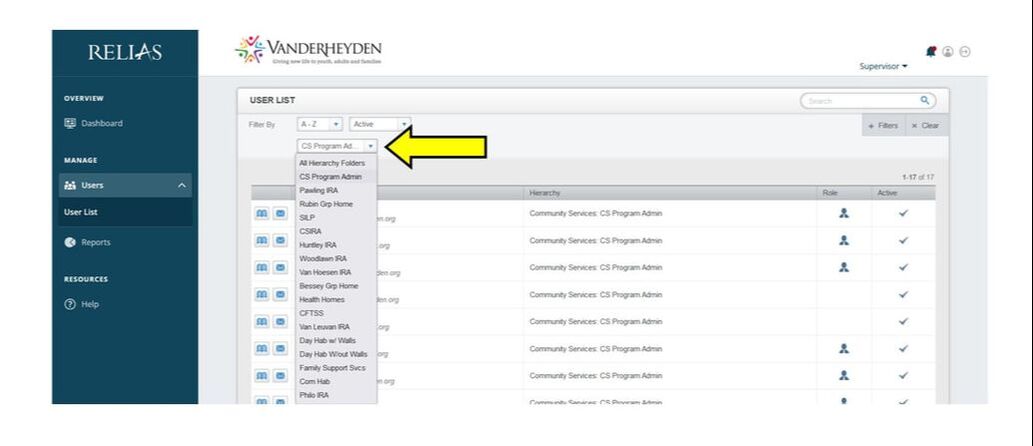
From your SUPERVISOR page, click on USERS on the left hand blue column. This will open a drop down menu. Select USER LIST.
If you oversee multiple Programs, you will have a drop down menu where you can select a specific Program or you can select All Hierarchy Folders to see everyone. You should have access to all Programs you oversee. (If you do not see a Program listed that you need access to, please reach out to the Training department.)
Find the employee you want additional information for and click on the small blue book to the left of their name.
If after accessing these reports, you want additional information about specific employees, such as when they are registered for in person trainings or when the assigned Training Plans are due, you can find this in their employee profile.
From your SUPERVISOR page, click on USERS on the left hand blue column. This will open a drop down menu. Select USER LIST.
If you oversee multiple Programs, you will have a drop down menu where you can select a specific Program or you can select All Hierarchy Folders to see everyone. You should have access to all Programs you oversee. (If you do not see a Program listed that you need access to, please reach out to the Training department.)
Find the employee you want additional information for and click on the small blue book to the left of their name.
The first screen you'll see is the employee's TRANSCRIPT. This lists all completed, enrolled, registered and past trainings. Here you can see the date trainings were completed; can print certificates for completed training; and access some forms for completed Requirements, such as a Med Pour or On the Job Checklist.
This list can be overwhelming as it lists everything. For a simpler view of what still needs to be completed and when they are registered for in person training, click on ASSIGNMENT DETAILS at the top of the page.
This list can be overwhelming as it lists everything. For a simpler view of what still needs to be completed and when they are registered for in person training, click on ASSIGNMENT DETAILS at the top of the page.
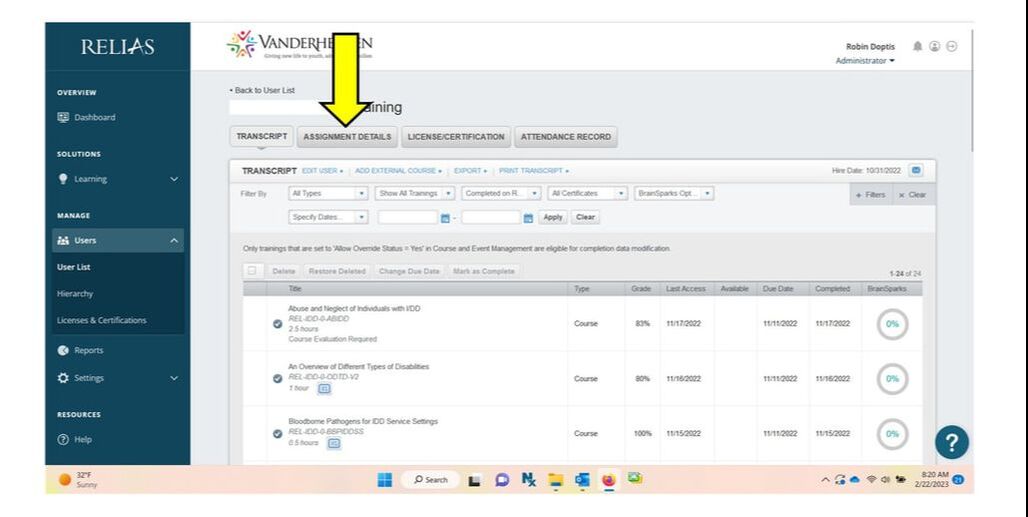
After clicking ASSIGNMENT DETAILS, you'll see a list of their assigned trainings.
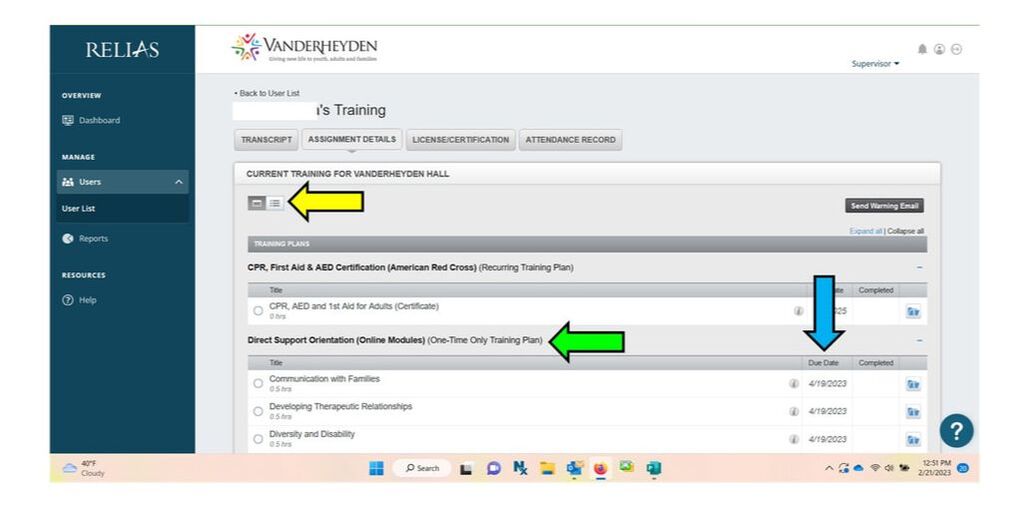
YELLOW ARROW: If you select the small box, instead of the 3 lines, it will organize the assigned trainings.
GREEN ARROW: Now the assigned trainings are grouped by Training Plan (if a topic belongs to a Training Plan). **Please note that only topics that still need to be completed will be listed under training plans. So for example, if someone completes all the topics in the NEO Training Plan, it will not longer be listed here.
BLUE ARROW: Every training is assigned a Due Date, which indicates when the training should be completed by.
YELLOW ARROW: If you select the small box, instead of the 3 lines, it will organize the assigned trainings.
GREEN ARROW: Now the assigned trainings are grouped by Training Plan (if a topic belongs to a Training Plan). **Please note that only topics that still need to be completed will be listed under training plans. So for example, if someone completes all the topics in the NEO Training Plan, it will not longer be listed here.
BLUE ARROW: Every training is assigned a Due Date, which indicates when the training should be completed by.
Scroll down the list to find in person training registration information.
YELLOW ARROW: If they are registered for an in person training, the date and time will be listed.
GREEN ARROW: If they are not registered yet for an in person training, it may just mean that they aren't due to take the training for some time. Always reference the Due Date if you are unsure.
YELLOW ARROW: If they are registered for an in person training, the date and time will be listed.
GREEN ARROW: If they are not registered yet for an in person training, it may just mean that they aren't due to take the training for some time. Always reference the Due Date if you are unsure.